
How Do You Make an Online Passport Renewal Photo From Your Phone?
Phone-to-upload walkthrough for online U.S. passport renewal: capture settings, lossless transfer, square cropping, the government's automated photo check, and the file specs that trip people up.
What does the online renewal photo actually need to be?
Unlike a paper application, online renewal at opr.travel.state.gov takes no prints — the photo is a file you upload. The specification: a color photo taken in the last 6 months, as a JPG, JPEG, PNG, HEIC, or HEIF file between 54 KB and 10 MB; a plain white or off-white background free of shadows, textures, and objects; your head centered and fully visible with the frame bottom around the edge of your shoulders; a direct-to-camera pose with neutral expression, mouth closed, both eyes open, no glasses; sharp and unpixelated; and — stated in exactly these terms — not "a photo you created or edited using artificial intelligence or other digital tools," with no filters or digital changes. A modern phone clears the technical bar effortlessly; the workflow below protects everything else.
How do you capture the right source photo?
- Use the rear camera — it's sharper than the selfie camera and doesn't mirror or distort.
- Have someone shoot from ~4 feet, phone at your eye level. Alone? Prop the phone and use the self-timer; skip the arm-length selfie.
- Stand 3–6 feet in front of a plain light wall, facing a window so daylight hits your face evenly and your shadow misses the wall.
- Frame from mid-torso up with clear space above your head — extra room makes the square crop easy.
- Plain Photo mode only: no Portrait mode, no filters, no styles, no flash.
- Burst 10–20 frames, then choose the sharpest one with a boring, even wall and your everyday face.
How do you get the file off the phone without wrecking it?
Recompression is the silent killer of upload photos. Texting a photo to yourself, posting it anywhere, or screenshotting it re-encodes the image with visible artifacts — and "grainy, pixelated" is an explicit failure category. Move the actual original instead: AirDrop to a Mac, cable transfer, or cloud sync (iCloud Photos, Google Photos set to original quality). If you apply from the phone itself, even easier — the original never moves. Two other file notes: HEIC straight from an iPhone is accepted, so no conversion dance is needed; and the 54 KB floor exists to catch thumbnails and screenshots, so if your file is suspiciously small, you are not holding the original. Never photograph or scan a printed photo to create the file — the rules call that out by name.
How do you crop it to the square the system wants?
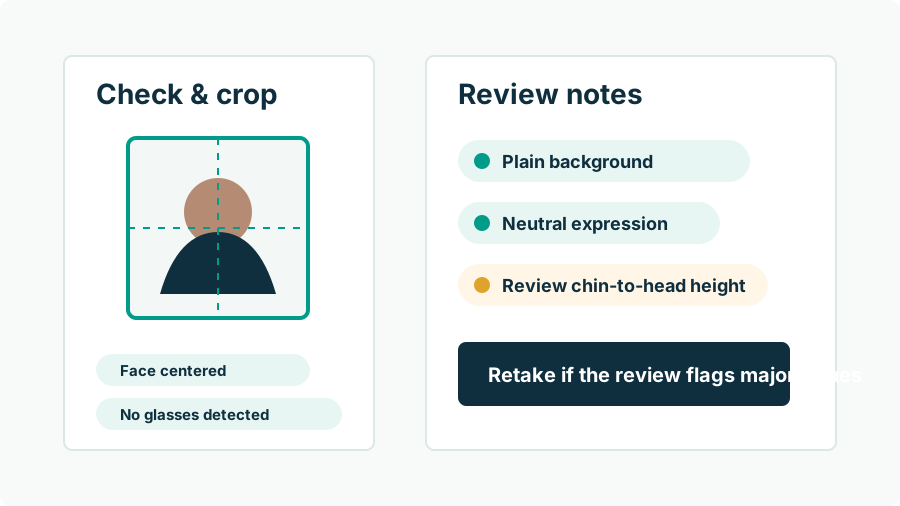
The upload expects tight, square, centered framing — head in the middle, a band of background above the hair, shoulders entering at the bottom corners — which mirrors the printed 2 x 2 proportions where the head spans about half to two-thirds of frame height. You can crop by hand in the Photos app (crop is legitimate formatting), but the head-size proportion is easy to miss by eye, and mis-framing is the most common reason the government tool bounces a photo. Passport Photo AI does the measured version: face detection finds chin and crown, the crop lands your head in the official band, and pre-checks flag shadows, tilt, and background problems before you're in the government workflow. The output is your same pixels, correctly framed — formatting, not editing.
What happens at the government upload step?
Inside the renewal application, the photo step runs the State Department's own automated check — per the official page, "the photo tool will check if your photo meets the basic requirements" and, if it refuses the image, tells you what to change. Take the message literally: "background" means find a plainer wall, "head size" means reframe, "quality" means you probably uploaded a compressed copy. Passing the tool is necessary, not sufficient — human review follows during processing, and a photo with signs of digital manipulation can be flagged there even after clearing the automated gate. That two-stage reality is the whole argument for the boring workflow: real wall, real light, original file, measured crop. Photos made that way have nothing to be flagged for.
What are the most common phone-specific mistakes?
| Mistake | Why it fails | Do instead |
|---|---|---|
| Portrait-mode capture | Synthetic blur = digital alteration | Standard Photo mode |
| Front-camera arm selfie | Distorted proportions, hard to center | Rear camera, helper or self-timer |
| Texted/screenshotted file | Recompression artifacts | AirDrop, cable, or original-quality sync |
| Auto-enhance left on | Counts as a filter/digital change | Disable enhancement; submit untouched frame |
| Photo of an old print | Explicitly prohibited source | Fresh capture within 6 months |
| Tight vertical crop | No room for square, head oversized | Shoot wide, crop down with tooling |
Avoid these six and the upload step usually takes one attempt. And as always: the tool's checks and ours are aids, not verdicts — verify the final image against travel.state.gov requirements before you submit.
FAQ
Can I upload a phone photo for online passport renewal?
Yes — a phone photo is the normal case. It must meet the digital requirements: JPG/JPEG/PNG/HEIC/HEIF, 54 KB–10 MB, taken in the last 6 months, plain white or off-white background, straight-on neutral face, sharp, and completely unedited.
Should I upload a scan of my printed passport photo?
No. The official rules say not to take a photo of a printed photo or scan a print — quality drops and it's a stated failure reason. Upload the original digital file from the camera.
Why does the upload tool keep refusing my photo?
It checks the basics and names what failed: usually framing (head too large/small or off-center), background, shadows, or file quality. Fix the named issue — often by reshooting wider or moving off the wall — rather than re-uploading the same file.
Does HEIC from an iPhone work?
Yes — HEIC and HEIF are on the accepted format list along with JPG, JPEG, and PNG, so you don't need to convert before uploading.
Can software fix my phone photo's flaws before upload?
Only formatting flaws. Cropping to the right square geometry is fine and encouraged; fixing shadows, backgrounds, or your appearance digitally violates the original-unedited-photo rule and risks a flag during processing.
How Passport Photo AI helps
Passport Photo AI turns an everyday photo into a passport-style crop or print sheet. It centers the face, sizes the head to the official 2 x 2 geometry, flags likely compliance problems like shadows or tilt, and exports both a digital square and a 4 x 6 print layout. It does not alter your appearance in the submission workflow, and the final decision always belongs to the passport agency or acceptance facility — verify your photo against the official requirements before you submit it.